
Connected billing for your barn
Questri + QuickBooks Online
Record the work once. Keep your accounting in QuickBooks.
Bring lessons, boarding, and care charges from Questri into the invoices you manage in QuickBooks. Less retyping, clearer billing, and a payment status your team can follow.
For US QuickBooks Online companies using USD. Set up and export from the Questri web app.
Questri
Record the charges
Lessons, board, care, and other billable work.
You stay in control
Review, approve, send
Choose the customer, services, and invoice.
QuickBooks Online
Invoice and get paid
New invoice or added lines on an eligible existing invoice.
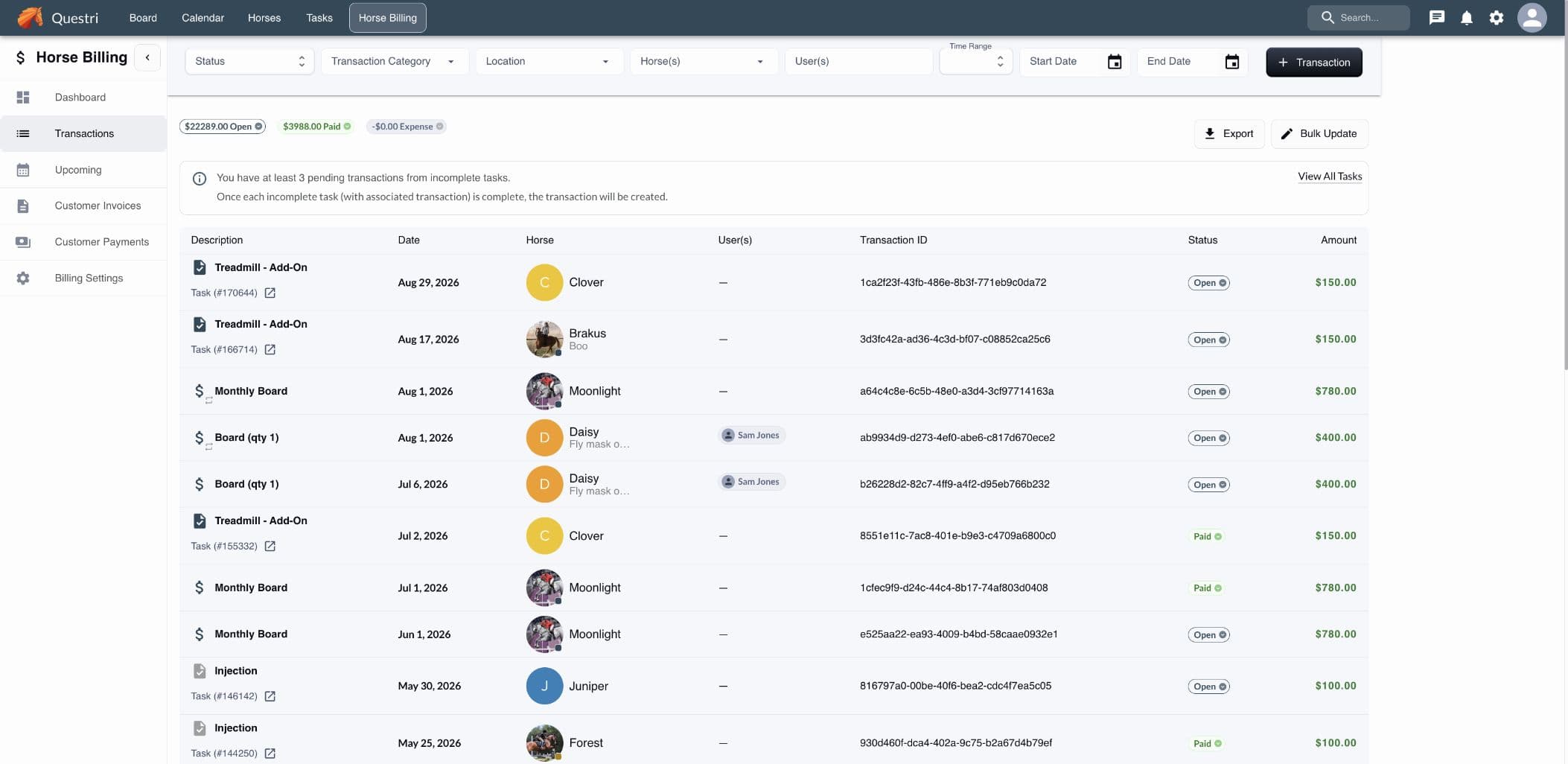
Confirmed full payment in QuickBooks updates the linked Questri transactions to Paid.
Less administration, better visibility
A shorter path from work to billing.
Skip the second round of data entry
Use the charges already recorded in Questri instead of rebuilding them line by line in QuickBooks.
Keep the accounting setup you know
Link your existing QuickBooks customers and services. Start a fresh invoice or add charges to an eligible one already in progress.
Know what has actually been sent
See export progress and last-synced payment status in Questri. Confirmed full payment updates the linked transactions.
Set up once
Connect the company.
Link the people and services.
Sign in through Intuit, then search for your QuickBooks customers and products or services. No IDs to find or copy.
These links tell Questri who to bill and how each charge should appear. The amount still comes from Questri.
See the setup stepsIn Questri
In QuickBooks Online
Questri
Client user
Morgan Reed
QuickBooks Online
Customer
Reed Equestrian
Questri
Task / transaction category
Trainer Lesson
QuickBooks Online
Product / service
Riding Lessons
Questri
Selected transaction
Lesson recorded in Questri
QuickBooks Online
Invoice line
Charge on the customer invoice
Choose how you bill
A new invoice. Or the one you already started.
Review the selected charges and choose an invoice destination for each customer. Questri adds the transaction details; QuickBooks remains the place to manage the invoice.
Selected Questri charges, grouped by customer
Create a new invoice
One QuickBooks invoice per customer, with a separate line for each selected charge.
Add to an existing invoice
Choose an eligible unpaid invoice in QuickBooks. Add your charges and keep its existing lines.
You control the handoff
Connected does not mean automatically sent.
Select charges, review them, approve the export, and send it. Approval reserves the transactions in Questri; sending is a separate step.
QuickBooks calculates tax using its settings. Manage invoice emails and payments there. Questri does not request an invoice email or collect payment when you export; your QuickBooks automations may still apply.
- Not sent to QuickBooks
- Approved in Questri. The Send step is still needed.
- Sent to QuickBooks
- The charges reached the selected invoices. Sent does not mean paid.
- Paid
- Confirmed full payment on a linked invoice updates its Questri transactions. Updates may take time.
Make your next billing run simpler.
Start with the company connection, link a client and a service, then review your first batch of charges.
QuickBooks and Intuit are trademarks of Intuit Inc. This integration is for QuickBooks Online, not QuickBooks Desktop.