
Before you begin
- An owner or admin account with access to Horse Billing in the correct Questri barn.
- A horse, a task type, and the correct amount for the work you intend to record.
- Knowledge of your barn’s transaction timing setting. Only the owner can change it.
01
Follow the work through to its billing entry
Configure billing on the task so the work and its charge stay connected. After the transaction is created, check it in Horse Billing before entering another charge or preparing an invoice.
- Task: the work to perform and mark complete.
- Transaction: the horse-specific billing entry with an amount, date, type, and status.
- Invoice: a separate document prepared from billing entries.
- Payment: money received. Creating a task or an Open transaction does not collect payment.
Not every completed task creates a charge. The task must have billing configured. Start with one horse so it is easy to check the resulting transaction.
02
Know when your barn creates transactions
Questri's default is to create the transaction after the task is marked complete. In the Web app, Horse Billing settings include Create Transaction at Task start. When enabled, the transaction can appear before completion, when the task starts.
The barn owner controls this setting. Confirm the current choice before investigating a missing transaction or creating one manually. Do not change a barn-wide billing setting just to fix one entry.
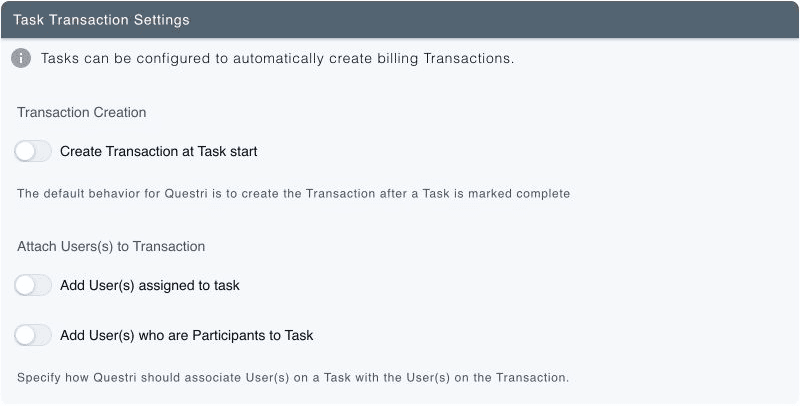
The demo barn uses completion-based billing. This barn-wide setting was inspected without changing it.
View full-size screenshot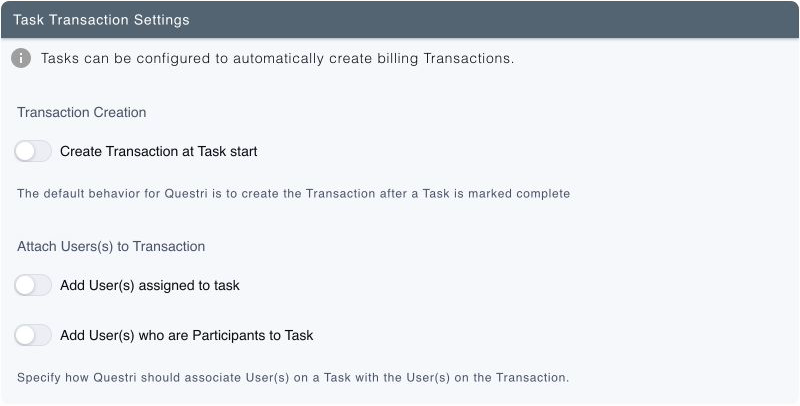
Task completion and transaction status are separate. A completed task can have an Open transaction. Open describes the billing entry, not unfinished horse care. Choose Paid only when it accurately reflects the payment already received.
03
Configure and check task billing in the Web app
- Open Calendar, choose Create, then open the Tasks tab. Select a type from the Horse Task group and choose one horse. Check the planned date and assignment.
- Open the task's billing controls. Depending on its current configuration, you may see Add Billing Transaction, Modify Billing Transaction, or Create Billing Transaction. Enable billing for the work you intend to charge.
- Enter the Amount. Choose Billable for a charge owed to your barn, rather than Expense. Review the initial transaction status; use Open for an unpaid charge.
- Save the task and reopen it to confirm the horse and billing details.
- Once the work is done, mark the task complete. With the default timing setting, this is when its configured transaction should be created.
- Open Horse Billing and review Transactions. Find the entry for the horse and date, then open it and check the Associated Task, amount, and status.
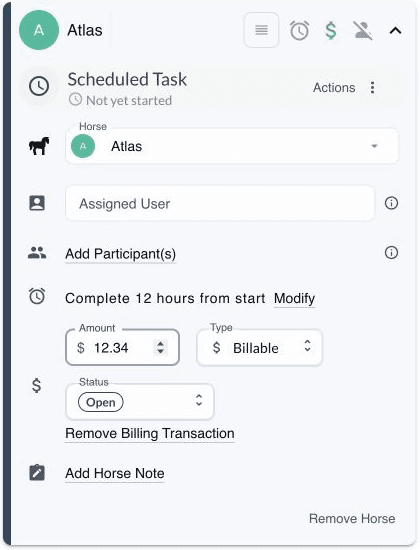
Check the horse and billing details together. The amount shown is demonstration data, not a suggested rate.
View full-size screenshot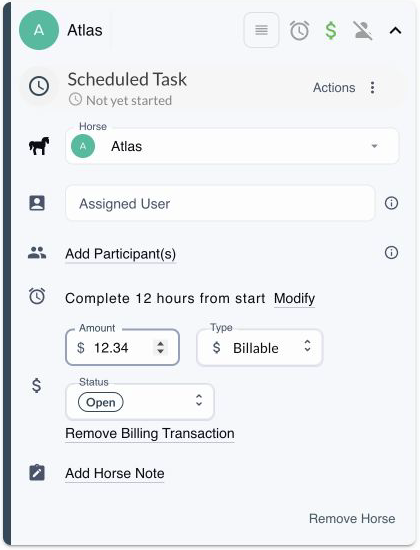
If you regularly charge for this task type, ask your barn owner or admin to review its billing defaults. Check the actual task before relying on a default, especially if you have overridden an amount.
In this demo, Atlas's task had no transaction while it was incomplete. Marking it complete created one $12.34 Open transaction for Guide example: treadmill. The saved entry links back to the task, so the billing record can be checked against the work that created it.
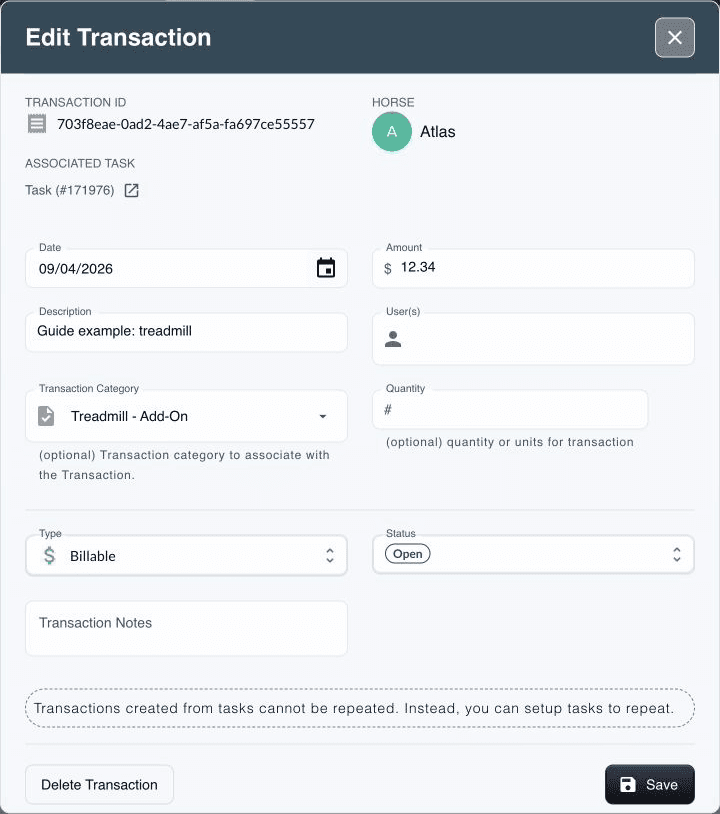
The resulting transaction was opened and checked after task completion. Open is its billing status; no invoice or payment was created.
View full-size screenshot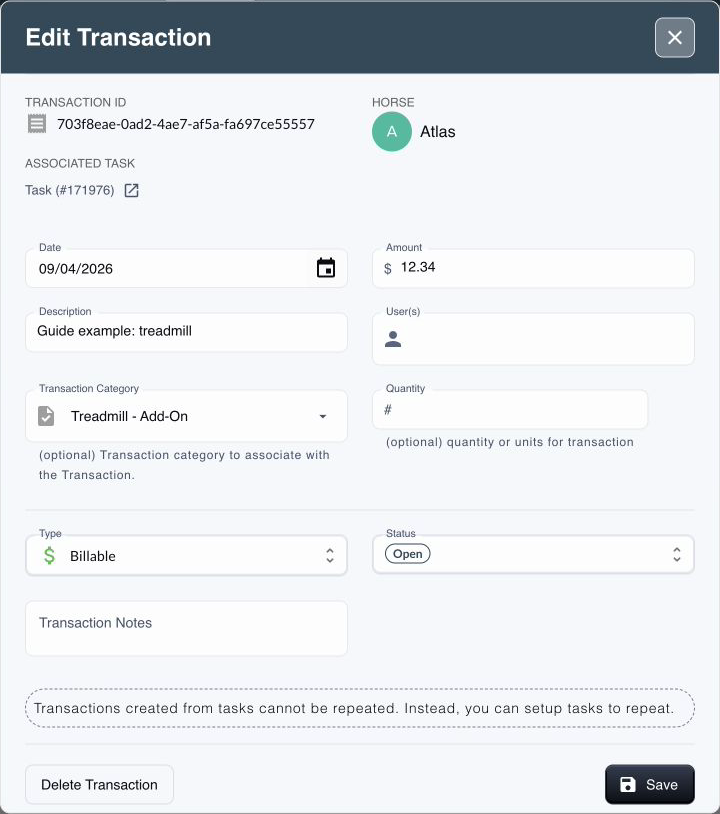
04
Configure and review billing in the Mobile app
- From Home, open Quick Actions and choose Task. Select the task type and horse. In the task card, tap Edit.
- Find Billing Transaction and turn on Create Billing Transaction if needed. Check Amount, set Type to Billable, and review Status.
- Tap Done to return to the task form. Check its date, assignment, and selected horse, then use the task save button. Done closes the edit panel; it is not the final task save.
- Record completion after doing the work. Open Billing using the dollar-sign navigation icon, then choose Transactions and find the horse's entry.
Check the amount and status in the transaction itself, not just the billing badge on the task. The same barn-wide transaction timing setting applies when your team works from mobile.
05
Use manual entry only when there is no existing charge
Manual transactions are useful for a charge that was not generated by a task. First search the horse's transactions for the same work and date. A missing item in the current filter is not proof that no transaction exists.
In the Mobile app, open Quick Actions and choose Billing Transaction. Select the horse, enter the date, description, and amount, choose Billable or Expense, and review the status before selecting Save. Reopen the entry in Transactions to check the result.
Use one horse for your first entry. When selecting multiple horses, check whether the amount applies to each horse or is being split. Do not assume one entered amount is automatically shared across the group.
06
Review before you invoice
- No transaction appears: confirm billing was configured on that task, check its actual status and your barn's timing setting, refresh Transactions, and review the horse and date filters. Do not rely on an Upcoming billing label as proof that work is complete.
- A transaction already exists: open it and inspect its association before adding another entry. Avoid charging once through the task and again manually.
- The task was reopened, changed, or deleted: inspect the transaction separately. Do not assume that task changes automatically reverse or remove a charge.
- You cannot see billing controls: check the current barn and your account permissions with its owner.
Finish by checking the horse, description, date, amount, and payment status. Use a laptop or desktop for a roomier month-end review; mobile also has invoice tools. Preparing or sending an invoice is a separate step from recording the billable work covered here.