
Before you begin
- An owner or admin account in your Questri barn.
- At least one horse and the horse task you want to track.
- The interval your team follows for that routine and any accurate completion dates.
01
Know when the next task is due
A reminder tracks when a horse needs a task again, using the interval you choose and the last recorded completion. It helps you spot work that needs scheduling or attention.
A recurring schedule puts work on planned dates. A reminder checks whether that work is keeping pace with its completion history. It does not automatically create the next task or a recurring calendar event. You decide what to schedule and record completion when the work is done.
The Web app example uses Bathe Horse, a 30-day interval, and one demo horse, Atlas. These are illustrative demo settings, not a recommended horse-care routine. Choose the task, interval, and horses appropriate to your operation, then follow the Web app or Mobile app steps.
02
Set up a reminder in the Web app
- Open Calendar, select the settings gear, then choose Reminders. On an iPad, use the Questri Web app in Safari for these steps.
- Select Add Reminder. Search for and select the horse task to track. Confirm its name appears in the selected field before continuing.
- In Number of days from last task completion, enter the interval as a positive number of whole days. Questri uses each horse's recorded completion, not the day you create the reminder, as the starting point.
- Choose All Horses or Specific Horses. For a specific group, select at least one horse and check the names shown. Do not leave the selection empty: an empty list is saved as all horses.
- Select Save and allow the reminders to calculate. Open the saved reminder and confirm its task, interval, and horse list.
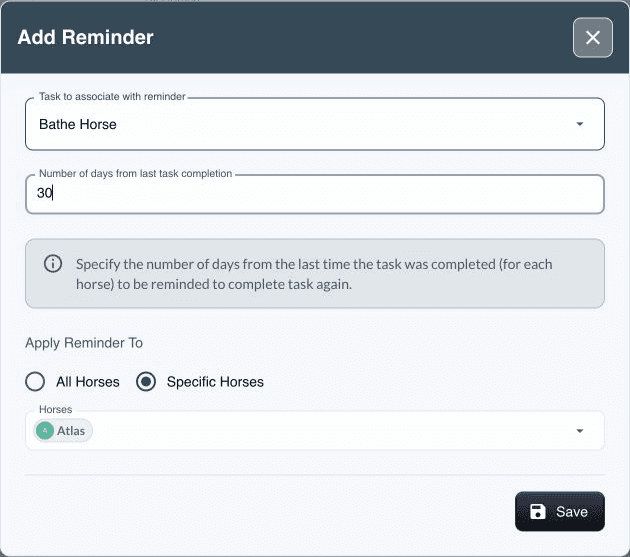
An example for one demo horse. Check the selected task, interval, and horse before saving.
View full-size screenshot
Select a horse in the report to open its reminder detail and review its completion history and next scheduled task. If there is no starting record, continue with completion history below. If the next task is missing, use Schedule Now to plan it.
In this saved demo example, Atlas has No Records, no reminder date, and no upcoming task scheduled. The reminder is saved, but there is no completed Bathe Horse task to calculate from. Scheduling future work helps you plan the next action; recording its actual completion supplies the history for the next reminder date.
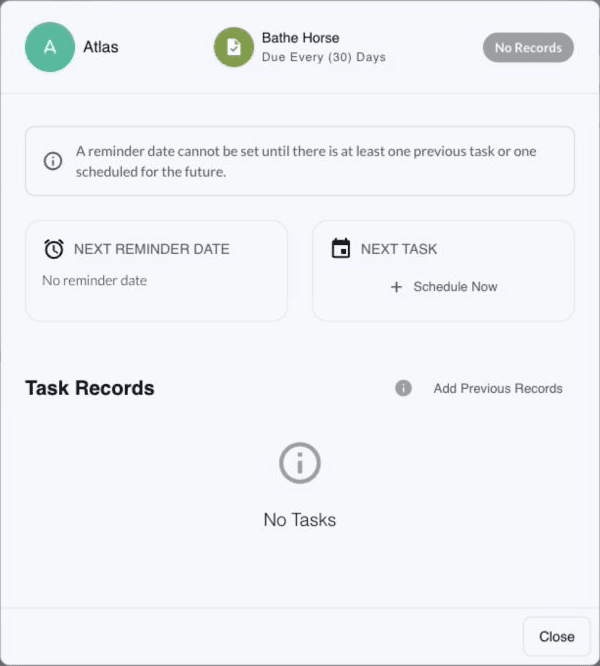
The reminder is saved for Atlas. With no completed task history yet, there is no reminder date to display.
View full-size screenshot
03
Set up a reminder in the Mobile app
- Open Tasks, choose Reminders, then tap Create.
- Select the horse task and enter the number of days between reminders. The calculation uses the last recorded completion, just as in the Web app.
- Choose All Horses or Specific Horses, and select the relevant horses. For a specific group, confirm at least one horse is selected before saving.
- Tap Add to open the reminder's tracked horses. Check the list, then tap a horse's reminder to see its status, task records, and next scheduled task.
If no future task is scheduled, tap Schedule Next Task. After recording completed work, pull down on the reminders list to refresh its counts and review the latest status.
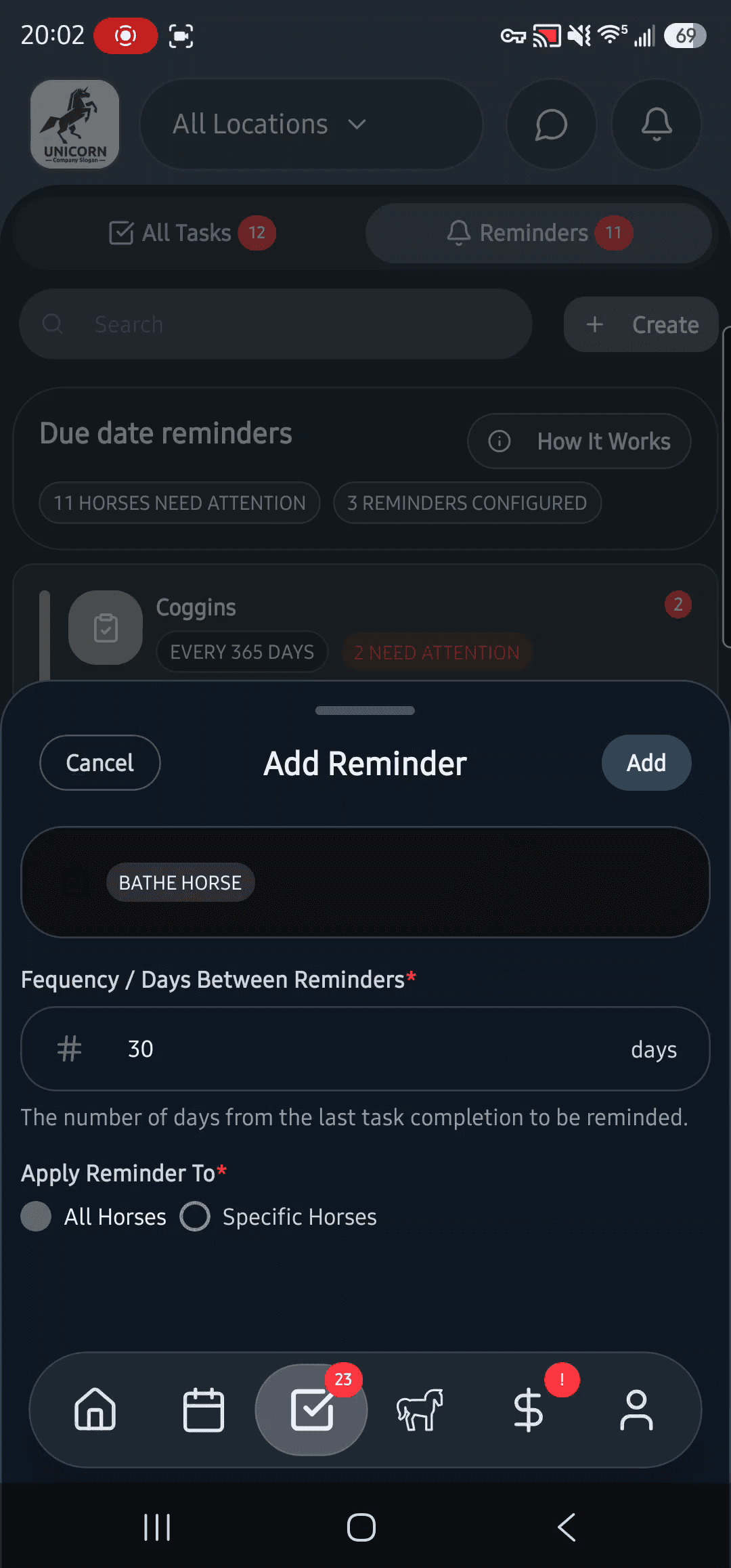
Choose the task, interval, and horses in one form. Demo settings shown in Android 1.16.15; use the interval appropriate to your routine.
View full-size screenshot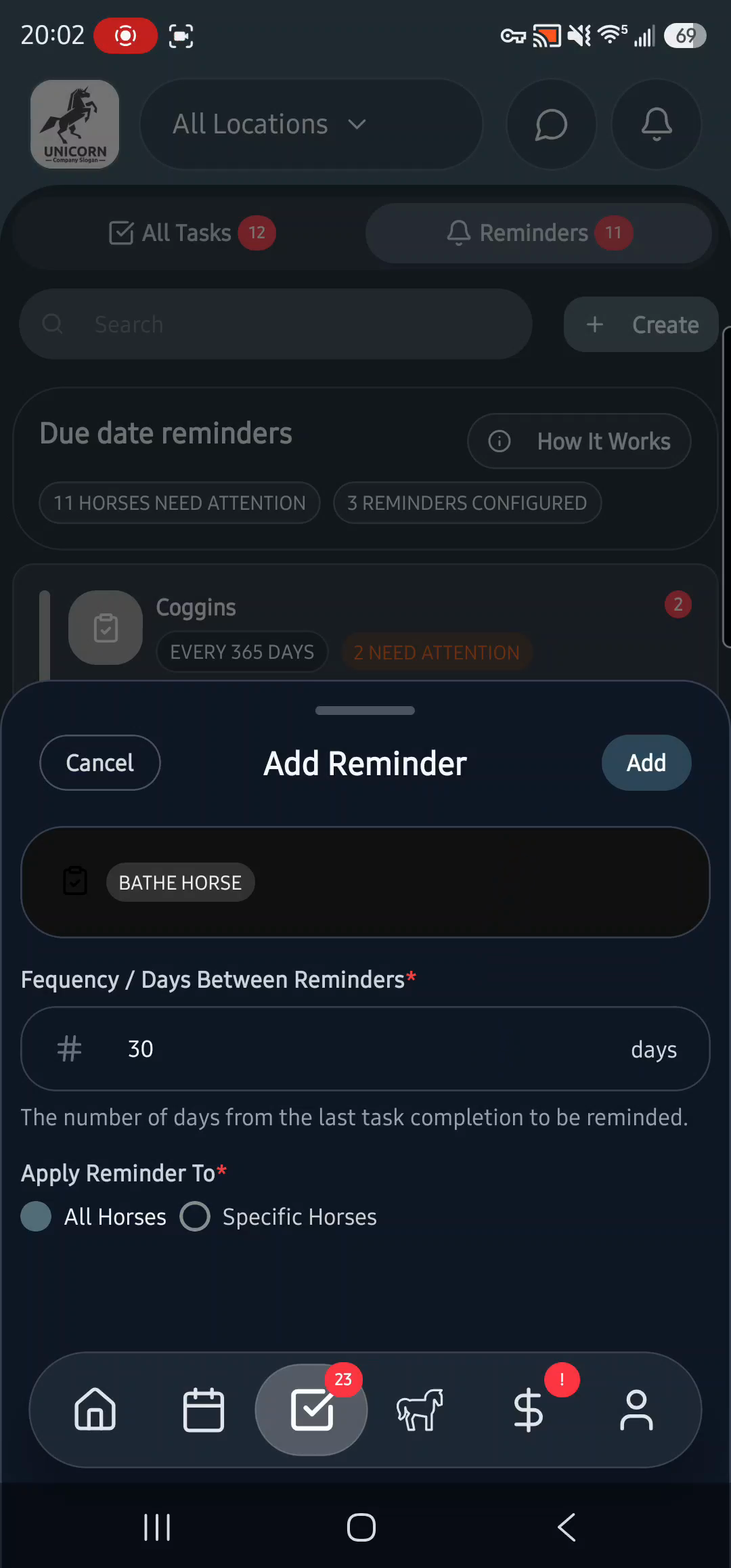
04
Give the reminder an accurate starting point
A new reminder can use task history already recorded in Questri. You do not need to enter that work again. If the task was completed before you began using Questri, add the actual completion date through the horse's reminder detail. Only record work that was completed.
Check before adding previous work. This creates completed historical tasks, not just a note. If the task has billing configured, historical entries may affect billing too. Review the settings and check for associated transactions.
In the Web app:
- Open the reminder, select the horse, and find Task Records.
- Select Add Previous Records. Enter the actual date in Date of previous record. Use Add another record only for additional completed occurrences that are not already in the history.
- Select Save Records.
In the Mobile app:
- Open the horse's reminder detail and select Add Previous under Task Records.
- In Previous Task Records, enter the actual completed dates and tap Save Records.
Reopen the horse's reminder detail and check that the expected record appears. Review its reminder date and status, then schedule the next task if needed. Do not add another historical record just to clear a warning or make a date look right.
05
Understand what needs attention
The Web app and Mobile app use these labels on a horse's reminder. Open the detail before deciding what to change:
- No Records: There is no previous task or future task to track. Add accurate previous work or schedule the next task.
- Incomplete: An existing task is still open. Check Task Records and record completion when the work is done. A future appointment or another completed occurrence does not resolve an older open task.
- Unscheduled: Previous work is recorded, but the next task needs scheduling.
- Past Due: Review the overdue work and arrange the next action.
- At Risk: The next task is scheduled beyond the reminder window. Review its date.
- On Track: The recorded work and next scheduled task are aligned with the reminder.
Different routines for different horses? Create separate reminders for the same task, each with its own interval and specific horse group. Check the groups so each horse follows the reminder you intend.
Need to change a reminder? Edit its interval or horse selection. The task itself cannot be changed after the reminder is created, so choose the correct task when setting it up.
Task selection will not stick in the Web app? Type the task name, press the down-arrow key to highlight the matching option, then press Enter. Confirm the selected name appears before saving.
Cannot see Reminders? Check that you are in the correct Questri barn with owner or admin access. After updating task records, refresh the reminder view to see the latest status.