
Before you begin
- Access to planning in the correct Questri barn. These examples use an owner or admin account.
- An existing task or calendar type and, for a Calendar Event, a location.
- The date, horses, and people involved in the work you are planning.
01
Choose work to complete or time to reserve
Use a Task when someone needs to do work and record its completion. Use a Calendar Event for a scheduled appointment, such as a lesson or farrier visit. They work together, but answer different questions.
| You need to | Start with |
|---|---|
| Assign work for a horse and check it off | Horse Task |
| Organize facility work, such as preparing the arena | Barn Task |
| Reserve a lesson or appointment with a time and location | Calendar Event |
| Track when work is due again after its last completion | Reminder |
Tasks can have dates, times, and repeating schedules too. The distinction is not whether something repeats: it is whether you are tracking work to complete or organizing an appointment.
02
Create the right item in the Web app
Open Calendar and select Create. On an iPad, use the Questri Web app in Safari.
For work to complete
- Open the Tasks tab, then choose a task type from the Horse Task or Barn Task group.
- Choose the horse or barn location, and assign the person responsible where appropriate.
- Set the planned date, time if needed, and any repeat rule. Review the task details and its starting status.
- Save, then find the task on the planned date. Record completion when the work has actually been done.
For a lesson or appointment
- Open the Calendars tab, then choose a calendar type, such as Lesson.
- Check the Event Display Name. Set the date, start and end time, and repeat rule if needed.
- Choose a location. Use Change Location if the preselected location is not right. Add horses and event details as appropriate.
- Add participants if the appointment needs them. In Event Tasks, add only the work you want tracked with this event; linked tasks are optional.
- Review the participants before selecting Save. The Web app says Participants are emailed an invite. Leave participants empty for an internal event that needs no invitations.
- Switch to the Calendar view using Toggle Calendar or Planning View, go to the event's date, and reopen it. Confirm the time, location, participants, and any linked tasks.
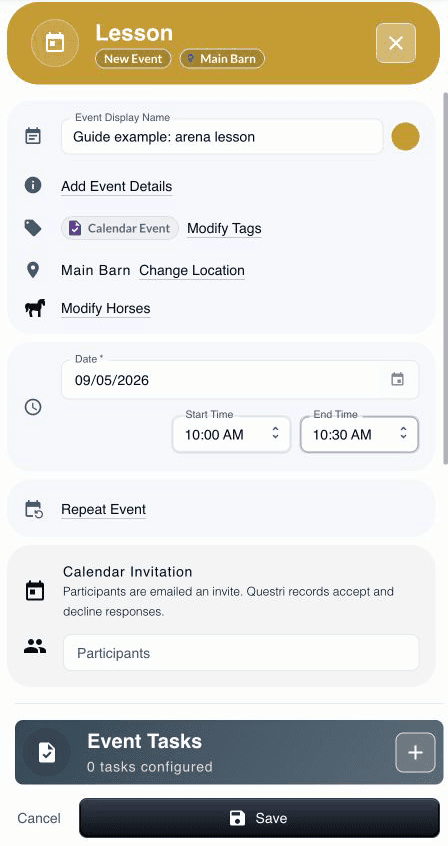
A complete appointment without linked tasks. This demo event was saved and reopened with its time and location intact.
View full-size screenshot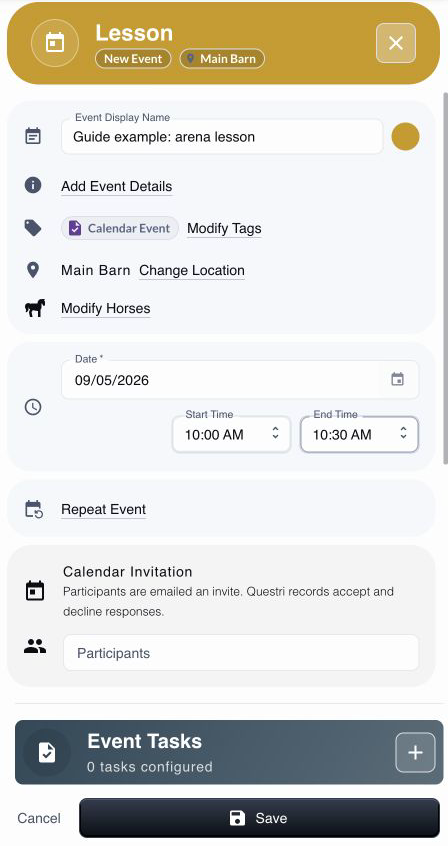
A selected calendar type may already supply tasks or other defaults. Review what the form contains instead of assuming it starts empty. If you add a linked task, choose its task type and horse or location before saving.
An event without linked tasks belongs in the Calendar view. It does not need a row in the horse-by-horse planning grid to be saved correctly. Our demo lesson was saved with its Main Barn location, a 10:00 to 10:30 AM time slot, no participants, and no linked tasks.
03
Create a task or event in the Mobile app
- From Home, open Quick Actions. Choose Task or Calendar Event. The Create Task or Event picker also lets you switch between Tasks and Calendars.
- For a task, select its type, choose the horse or barn location, check Assigned To, and set When, Time, and Repeat. Review its details, then use the save button showing the number of tasks.
- For an event, choose a calendar type. Set its schedule and add the required Location under Details. Choose horses and participants as needed. Use Add Task under Linked Tasks only when you need associated work.
- Check Email invitation to participants if shown, then tap Save Calendar Event. Open the saved item from the planning or calendar view and check its details.
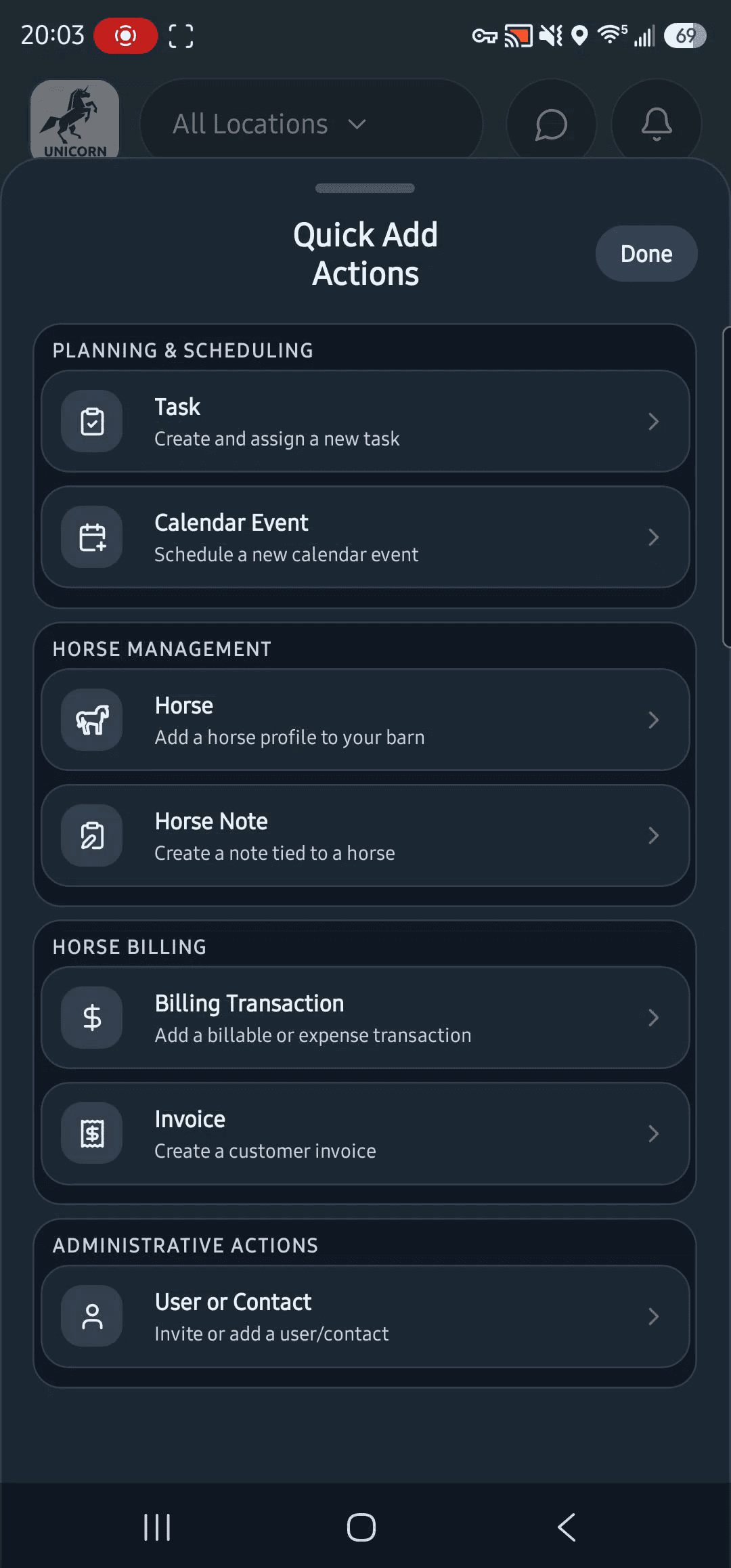
Start with the job you need to organize. Actual Quick Add Actions in Android 1.16.15.
View full-size screenshot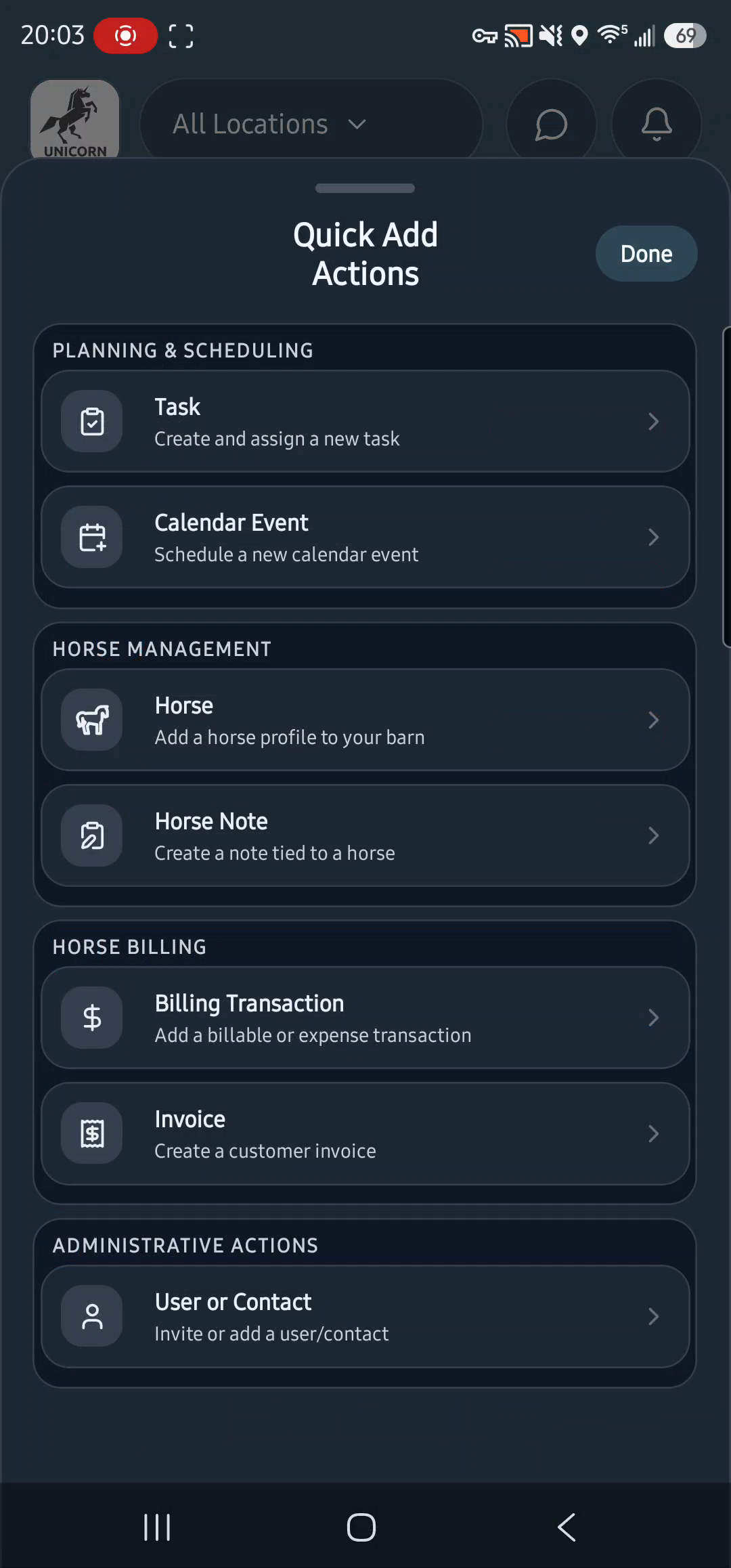
The core workflow is shared across iPhone and Android. Native date pickers and keyboard controls can look different.
04
Use the event for the appointment and tasks for the work
For example, reserve a lesson with its time, location, horse, and participants. Add a linked preparation task if someone needs a clear assignment and completion check. The appointment and its work stay connected without treating attendance as proof that every task is done.
Participants are not task assignments. Check who is attending the event separately from who is responsible for each task. Do not add a person merely to make an assignment look complete.
05
Check these details before you change the plan
- The event will not save: check the calendar type, required location, and date and time. Any linked task must also have its required selections.
- The item is missing: check the selected date, location, and filters for Horse Tasks, Barn Tasks, and Calendar Events before creating it again.
- You are editing a repeating item: read the save choices carefully. Changing one occurrence and changing the series are different actions.
- You need completion-based due dates: set up a horse reminder, not another appointment just to hold the due date.