
Before you begin
- An owner or admin account in the Questri organization that manages the horse.
- The horse profile, feed, notes, and task records reviewed for accuracy and suitability for your recipient.
- A clear purpose for sharing, such as a sale, discharge, or update for someone outside your organization.
01
Choose a link, report, or file
Share Links let someone outside your Questri organization view a horse without joining your team. Choose which notes and task types to include, then share the link or use its public horse page to download a PDF report.
- Share link: Give someone a page they can revisit. The page reflects current information within the content you have chosen to share.
- PDF report: Download a copy of the displayed horse details to attach to an email, print, or keep for reference.
- Individual files: Open attachments in shared notes when someone needs the original document or image.
Check what is always shared. Horse profile fields, including name, date of birth, and reference numbers, along with horse feed, are always available through a Share Link. The note and task selectors do not hide those details.
The shared page also shows your organization, the link creator's name and email, and any Message/Note. Review these alongside the selected records before sending.
02
Create a Share Link in the Web app
- Open Horses, select the horse, then choose More > Share Links.
- Under Horse Profile Sharing Links, select New Share Link.
- Add an optional Message/Note explaining the purpose of the link. Anyone viewing the link can read this message.
- Set the Start Date and, if access should end, an End Date. These control when the link is available; they do not filter the dates of the records shared. A blank end date leaves the link without a scheduled expiry.
- Leave Share With Name/Emails empty if you want to review the link before sending it. Adding recipient emails sends the link when you save.
- Choose the notes and task history under Horse Profile Details to Share, following the selection guidance below, then select Save.
03
Choose the notes and task history to include
Start with what your recipient needs. Leave unrelated note categories and task types unselected.
- Share Notes by Note Type: Select categories such as Health, Farrier, or Show to include notes of those types. Use this when the recipient should see that category, including new matching notes as records change.
- Share Specific Selected Notes: Choose Select Specific Notes To Share, pick individual notes, then select Done. Check the selected-note count and review each note's text and attachments.
- Share Task Records/History: Select the task types whose records the recipient needs. Leave it empty if no task history is needed.
These choices add to one another. Selecting one specific Health note does not narrow the All Health Notes selection. To share just that note, leave its whole category unchecked and select the note individually.
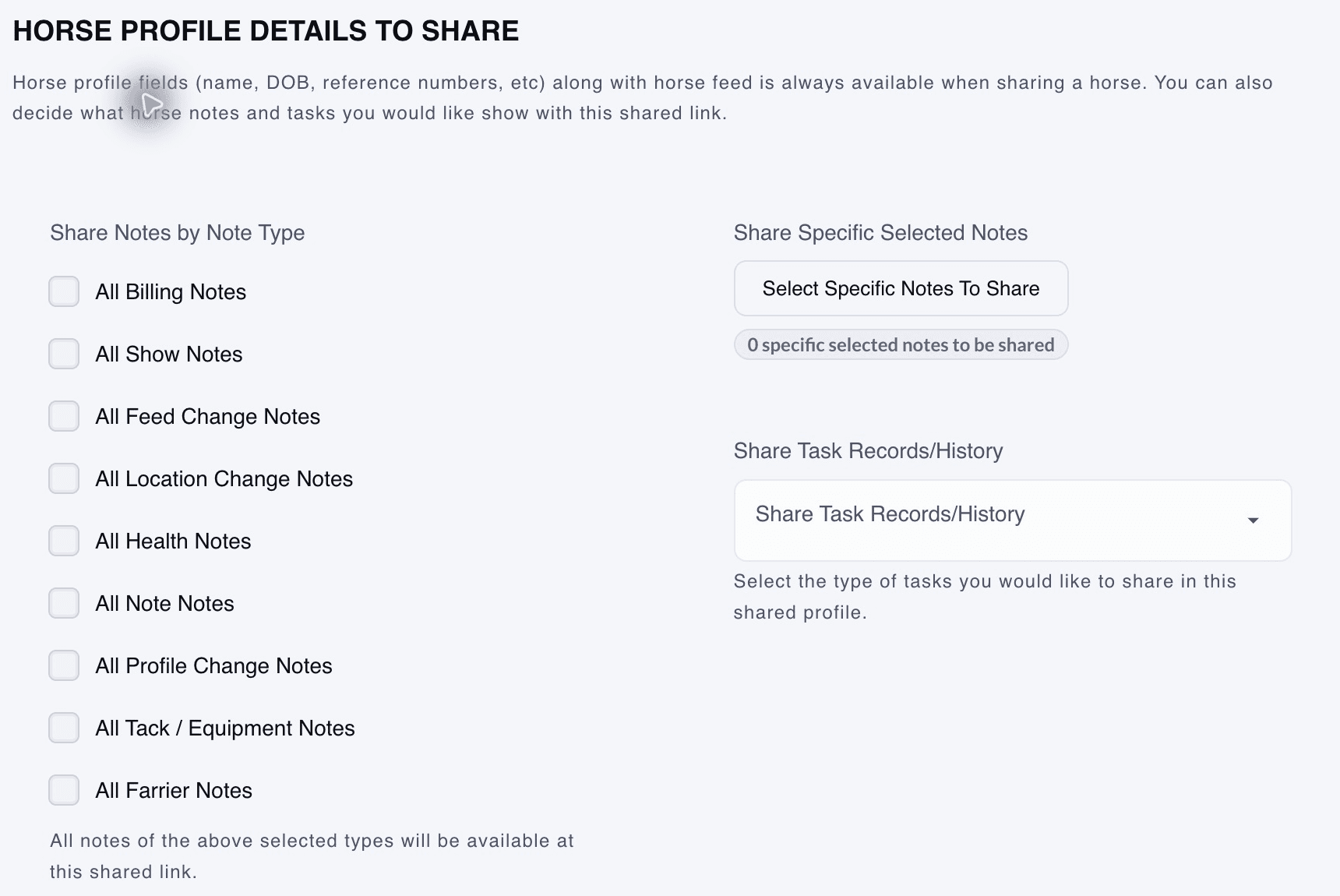
The content selection area in the Web app. No additional notes or task types are selected in this unsaved demo example; profile fields and feed are still included.
View full-size screenshot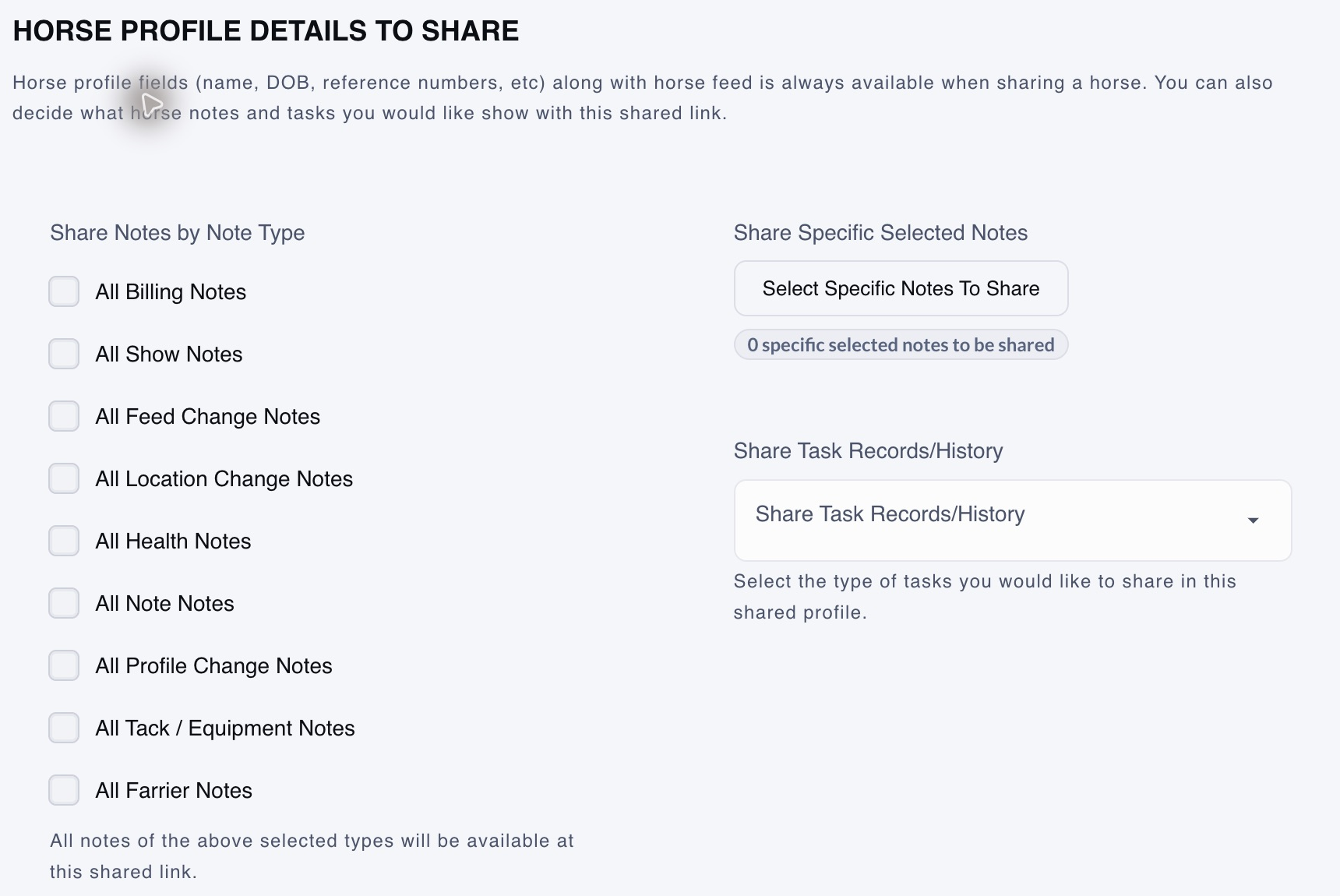
For example, a discharge handoff might include one discharge note and relevant treatment task types. Review any attached documents too. Create a separate link with different selections for a buyer who needs different information.
05
Download a PDF report or attached file
- Open the active Share Link and allow the horse details to load.
- Select Download PDF to generate a report of the displayed horse profile, feed, and selected note and task sections.
- Open the downloaded PDF and check its pages before sharing. The shared page's introductory Message/Note and sender header are outside the PDF report, so include any needed introduction in your accompanying message.
- For an original attachment, find it in a shared note and select it. Documents download directly; images can open a preview with a Download option.
The PDF is a report, not a bundle of original attachments or a complete historical archive. Check that the records and files you need are present, and download original documents separately when needed.
A downloaded PDF is a saved copy. If the horse's information changes, generate a new PDF before sending an updated report.
06
Update or stop sharing
Return to the horse's More > Share Links and edit the relevant entry to change its message, dates, note selections, or task types. Check the email-update option before saving.
Use an End Date to limit how long the shared page remains available. To remove a link, first check that you have selected the correct entry, especially when the horse has several. Open its edit form and choose Delete.
Ending or deleting a link does not recall PDF reports or files someone has already downloaded. Share saved copies with the same care as the link itself.
07
If something does not look right
- Share Links is missing: Check that you are in the correct organization with an owner or admin account, then look under the horse's More menu.
- The link is unavailable: Check its start and end dates, whether it was deleted, and that you copied the generated Share Link.
- A note or task is missing: Check the link's selected notes and task types, then review the shared page again. A shared view should not be treated as a complete export of every historical record.
- Too much information is visible: Remove unnecessary note categories, individual notes, and task types. Remember that profile fields and feed are always included; if those should not be shared, do not send the link.